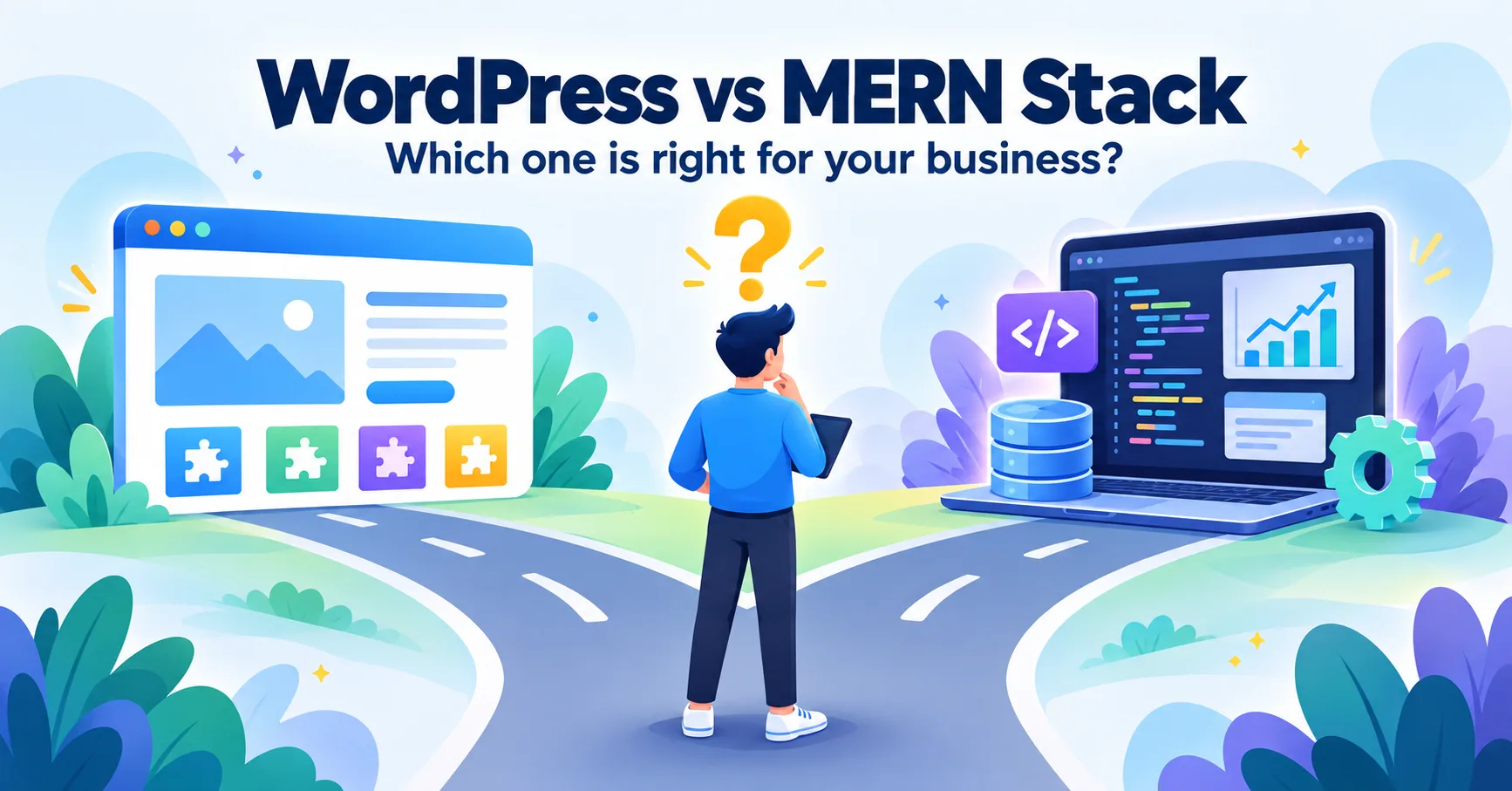
Google Sheets Automation: How It Works (No Zapier)
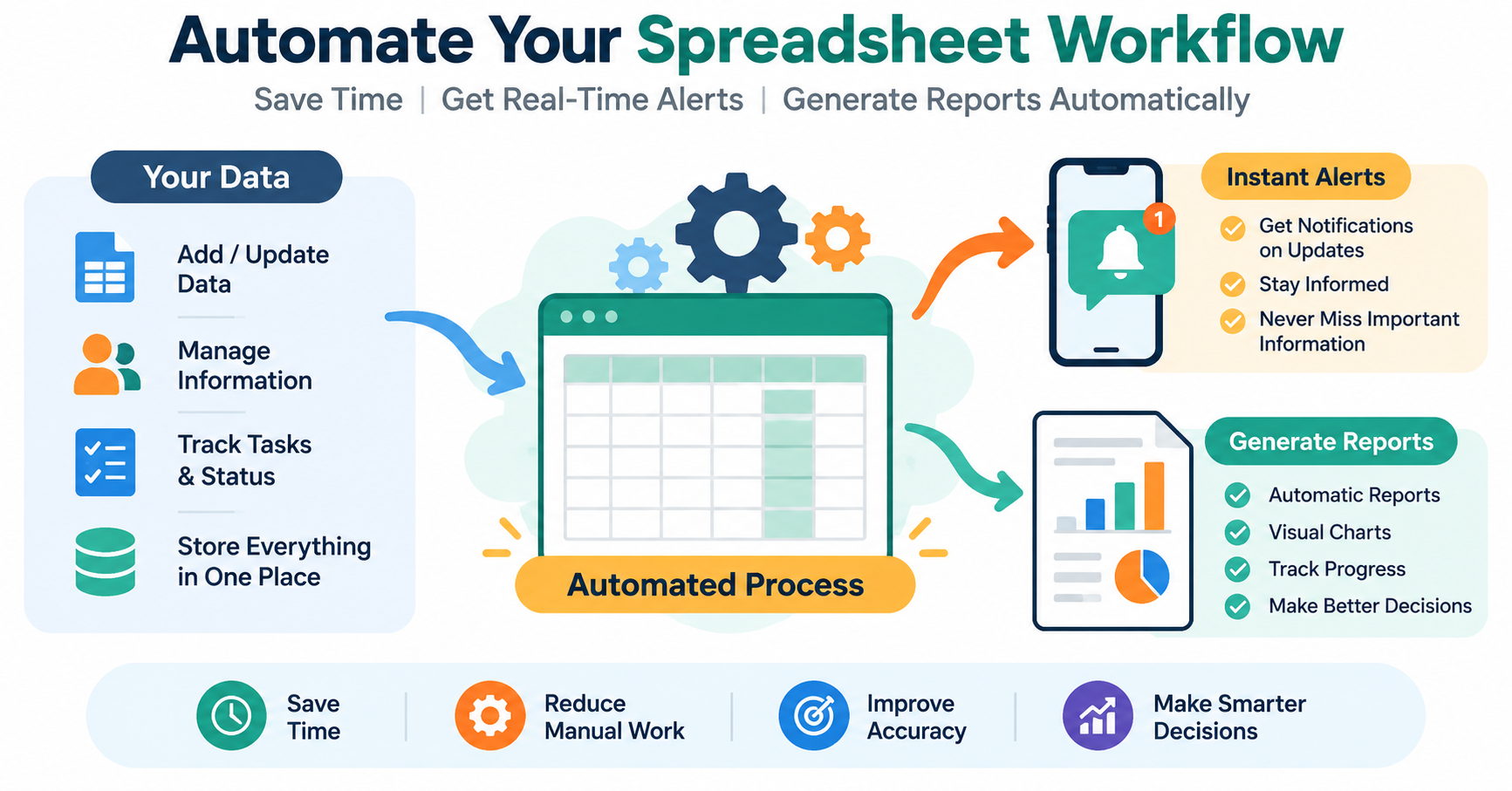
What Is Google Sheets Automation?
Google Sheets automation means your sheet does tasks on its own. You do not click, copy, or type each time.
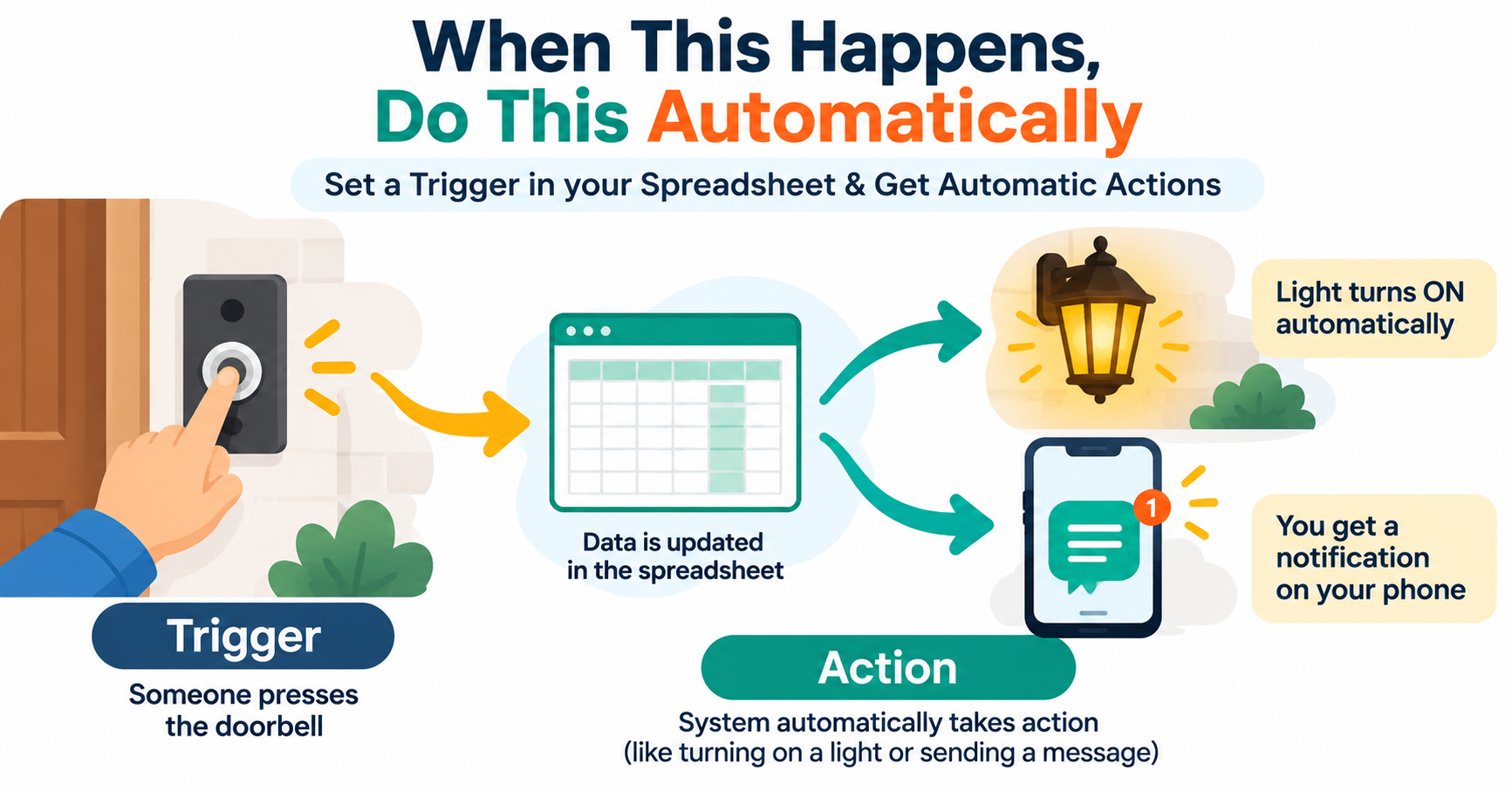
Think of a smart doorbell. Someone presses it, and a light turns on and a message reaches your phone. You did not do anything. The doorbell handled it.
Your sheet can work the same way. Here are a few things it can do on its own:
- Send a message to your phone when a new order arrives.
- Build and send a sales report every evening.
- Save data from your website form into a sheet.
- Remind you about unpaid invoices.
- Warn you when stock is low.
This is also called business automation. It simply means letting software repeat boring tasks so your team can focus on real work.
What Is Google Apps Script?
Google Apps Script is the tool that makes this possible. It is a small coding feature that comes free inside Google Sheets, Google Forms, Gmail, and other Google apps.
Here is an easy way to see it. Google Sheets is a notebook. Apps Script is a helper sitting next to the notebook. You give the helper simple rules, like "when a new row appears, send me a message." The helper then follows those rules every time.
A developer writes these rules once. After that, the helper runs on Google's own servers. You do not need to keep a computer on. You do not need to buy extra hosting for it.
How Automation Works: Triggers and Actions
Every automation has two parts. They are easy to remember.
- Trigger: the event that starts the work. For example, a new row is added, a form is submitted, or the clock hits 8 PM.
- Action: what happens next. For example, send a Telegram message, send an email, or update another sheet.
Think of it like this: "When the doorbell rings (trigger), turn on the porch light (action)."
Apps Script supports common triggers:
- On a schedule. Run every day at a set time, every hour, or every week.
- On a form submit. Run when someone fills in a Google Form.
- On an edit. Run when someone changes a cell in the sheet.
- On a web request. Run when your website sends data to the sheet.
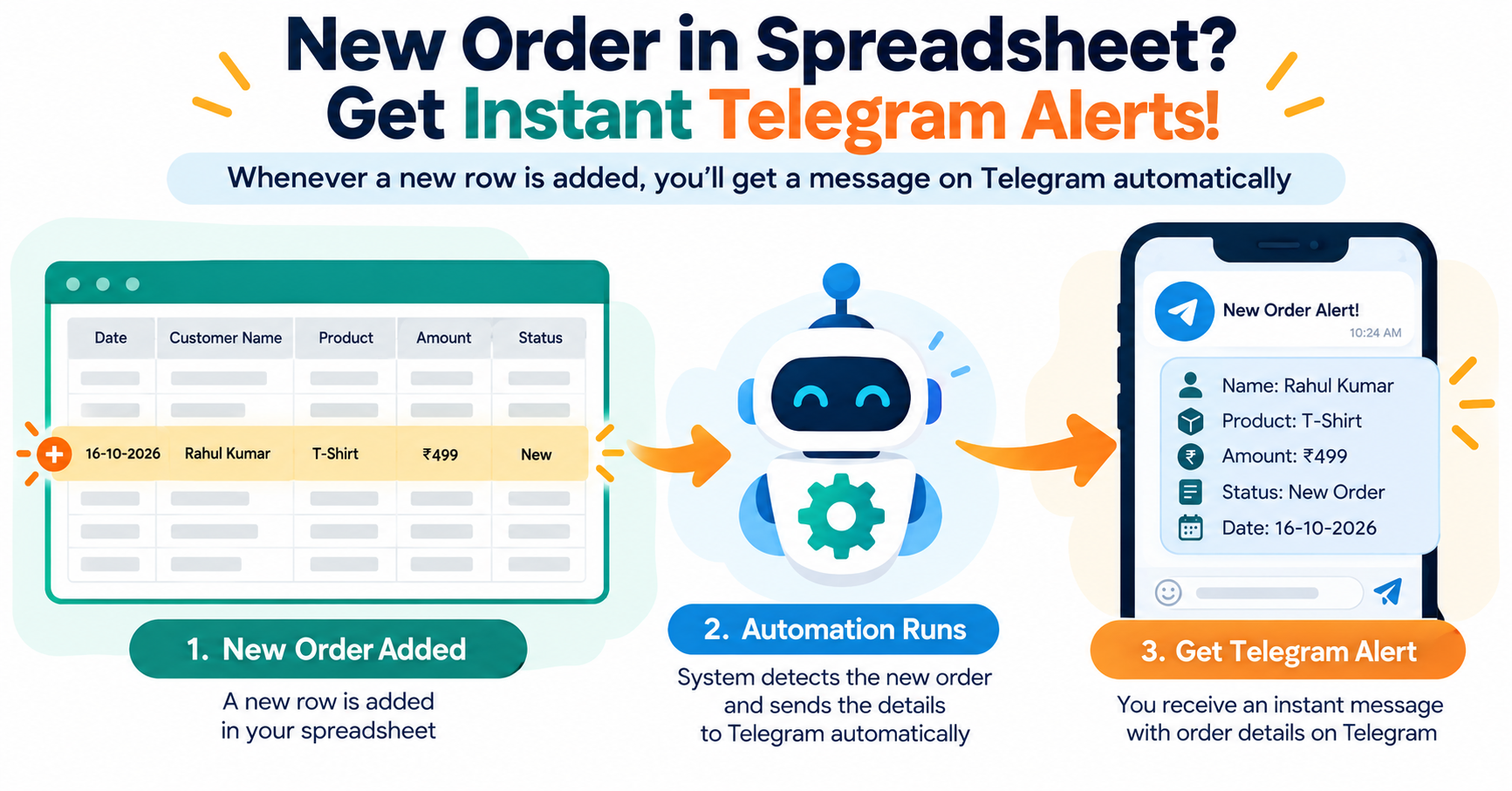
 Example: Order Alerts on Telegram
Let us say you sell products online. Orders come in through a form or a website. Each new order is saved in a Google Sheet. Now you want to know about each order the moment it arrives.
How it works
- A customer places an order. The details are saved as a new row in the sheet.
- The new row triggers the automation.
- The script reads the order details, like name, product, quantity, and amount.
- It sends a short message to your Telegram alerts chat through a Telegram bot. A bot is a small automated account that can send messages.
What the message may look like "New order. Name: Rahul. Product: Blue Bag. Quantity: 2. Amount: ₹1,800. Phone: 98xxxxxx."
Why this helps
- You see the order within seconds, even when you are away from your laptop.
- You can send the alert to a team group, so the packing person sees it too.
- You never need to keep checking the sheet.
You can go one step further. Add a rule that sends a different alert for big orders. Or send the customer a confirmation message too.
Example: Automatic Daily Sales Report
Many owners spend time at night adding up the day's sales. They check each row, add the numbers, and send a summary to partners. This is slow, and one wrong number can cause confusion.
How it works
- All sales are saved in one sheet during the day.
- A schedule trigger runs the script every evening at a time you choose, like 8 PM.
- The script finds today's rows and adds them up.
- It builds a short summary: total sales, number of orders, best-selling product, and pending payments.
- It sends the summary by email, Telegram, or both.
What the report may look like "Daily report. Total sales: ₹42,500. Orders: 31. Top product: Blue Bag. Pending payments: 4."
Why this helps
- The report arrives at the same time every day without anyone doing it.
- The numbers are always calculated the same way, so errors drop.
- Partners and managers get the same update at the same time.
You can use the same idea for weekly and monthly reports too. The script can also save a copy of each report in a new tab, so you keep a clean history.
[IMAGE 4 — A clock showing evening time, a spreadsheet with rows adding up into a summary card, and a report arriving on a phone and laptop]
Example: Lead Form Data Saved to a Sheet
Say you run a service business. You get enquiries from your website, from ads, and from social media. If leads sit in different places, some get lost. A lost lead is lost money.
How it works
- A visitor fills in a form on your website. Common fields are name, phone, city, and need.
- The form sends the data to a small web link made with Google Apps Script. Think of it as a mailbox with your sheet's address on it.
- The script saves the data as a new row in your lead sheet. It also adds the date and time.
- It can send a Telegram alert to your sales team: "New lead from Pune. Needs a Mini App."
- It can also mark each lead as "New", so your team can later change it to "Called" or "Closed".
Why this helps
- Every lead lands in one place.
- Your team can call the lead within minutes, not hours.
- No lead is lost in a busy inbox.
If you use a Google Form instead of a website form, it is even simpler. Google Forms can save answers to a sheet by itself. Apps Script then adds the alerts and extra steps.
[IMAGE 5 — A website form sending data through a mailbox-style link into a lead sheet, with a Telegram-style alert going to a sales team icon]
More Ways Businesses Use Google Sheets Automation
Here are a few more ideas that work well for small teams.
- Low stock alerts. When a stock number goes below your set limit, the sheet sends a message so you can reorder in time.
- Payment reminders. The script checks due dates. It sends a polite reminder to customers whose payment is late.
- Invoice creation. Fill in a row, and the script creates a PDF invoice from a template and emails it.
- Attendance and task tracking. Staff fill in a form. The sheet updates a summary and alerts a manager if someone is missing.
- Data cleanup. The script removes duplicate rows and fixes common format problems, like phone numbers.
You do not need all of these. Start with the one task that wastes the most time.
Google Apps Script vs Zapier-Style Tools
Zapier is a popular tool that connects many apps without coding. It is good at what it does. Many people like it because it is easy to start. But tools like this usually charge a monthly fee, and the price often goes up as your tasks grow.
Google Apps Script works differently. A developer builds your automation once. It then runs inside your Google account. There is no monthly tool fee for the automation itself.
Here is an honest comparison:
| Point | Google Apps Script | Zapier-Style Tools |
|---|---|---|
| Monthly fee | No monthly tool fee | Usually a monthly plan |
| Setup | Needs a developer to build it | Often easy to set up yourself |
| Best for | Work around Google Sheets, Forms, Gmail, and Telegram | Connecting many different apps quickly |
| Custom rules | Very flexible | Flexible, but limited by the plan |
| Daily limits | Google sets free daily limits | Plan limits set by the tool |
| Control | Your script lives in your Google account | Runs on the tool's platform |
Neither one is always better. If you only need a few simple links between apps, a no-code tool may be enough. If most of your work lives in Google Sheets and you want custom rules without a monthly bill, Apps Script is a strong choice.
[IMAGE 6 — Comparison board: Apps Script card with a "no monthly fee" tag and a Zapier-style card with a monthly plan tag, with simple icons for setup, flexibility and limits]
What Can Go Wrong With Sheet Automation
Automation looks simple when it works. Problems show up when it is built in a hurry. Here are the real risks.
- Silent failures. A script stops after a small change, like a renamed column. Nobody notices for days, and alerts stop coming.
- Google limits. Google sets daily limits on things like emails and running time. A badly built script can hit those limits and stop.
- Duplicate alerts. Without proper checks, the same order can send two or three messages.
- Weak security. A Telegram bot has a secret key. If it is left in the open or shared by mistake, others can misuse your bot.
- Messy sheets. If people type data in different formats, the script reads it wrongly and sends wrong numbers.
- No error alerts. A good automation tells you when something fails. A weak one just stops.
None of these are scary. They are normal. But they are the reason a careful build matters. The script should handle errors, avoid duplicates, protect secret keys, and tell you when something breaks.
This is the part we focus on at Earning Planet IT Services. We build Google Apps Script automations and Telegram alerts with proper error checks and safe key handling. Our automation work starts from ₹999, and there is no monthly Zapier-style fee for the automation itself. The final price depends on how much your task needs, and we tell you the cost before we start.
How to Start Without Wasting Time
You can start small. Here is a simple way to think about it.
- Pick one boring task. Choose something your team repeats every day. Order alerts, daily totals, and lead saving are good first picks.
- Clean your sheet first. Use clear column names. Keep one type of data in each column. Avoid empty rows in the middle.
- Write the rule in plain words. For example: "Every day at 8 PM, add today's sales and send me the total on Telegram."
- Test with fake data. Run the automation on sample rows before you use real orders.
- Add an error alert. Make sure the script tells you if it fails.
- Review after a week. Check if the alerts and numbers look right. Then add the next task.
Small wins build trust. After one task works well, adding more is much easier.
Frequently Asked Questions
- What is Google Sheets automation? It means your Google Sheet does tasks by itself, like sending alerts, making reports, or saving form data. You do not repeat the work by hand.
- What is Google Apps Script? It is a free coding feature inside Google apps. A developer uses it to write rules that make Sheets, Forms, and Gmail work automatically.
- Do I need Zapier to automate Google Sheets? No. Zapier is one option, but Google Apps Script can handle many tasks inside Google Sheets without a monthly tool fee.
- Can Google Sheets send Telegram alerts? Yes. With Apps Script and a Telegram bot, a sheet can send a message to your phone or team group when something happens, like a new order.
- Is Google Sheets automation safe? It can be safe when built well. Keep secret keys private, limit who can edit the sheet, and use proper error checks.
- Can I automate without knowing how to code? You can use simple features like Google Forms and basic formulas. For alerts, reports, and custom rules, it is better to ask a developer to build it once.
- Are there any limits? Yes. Google sets daily limits for free accounts, such as how many emails a script can send and how long it can run. Most small business tasks stay well within these limits when the script is written properly.
- How much does it cost to automate a Google Sheet? It depends on the task. A simple automation costs much less than a complex one with many steps. Ask for a clear quote before you begin.
Final Thoughts
Google Sheets automation is one of the easiest ways to save time in a small business. You do not need big software or a heavy monthly bill. A sheet you already use can send order alerts, build daily reports, and catch every lead. Start with one task, build it carefully, and grow from there.
If you want help, we recommend talking to Earning Planet IT Services. We build Google Sheets automation, Telegram alerts, and custom business tools using Google Apps Script and the MERN stack. Our automation work starts from ₹999 with no monthly subscription fee for the automation, and we will tell you honestly what your idea needs before you spend anything.
Need a Professional Project?
We specialize in MERN Stack, Telegram Bots, and SEO-optimized web solutions. Let's build something amazing together!